%22%3E%3Cpath%20d%3D%22M22.917059%2C9.3123641L25.43714%2C17.663866L27.955452%2C9.3123617L30.922102%2C9.3123617L33.442169%2C17.663866L35.963985%2C9.3123617L38.874596%2C9.3123617L34.890476%2C22.443415L31.918562%2C22.443415L29.407253%2C14.12346L26.885426%2C22.443415L23.913528%2C22.443415L19.950422%2C9.3123617L22.917059%2C9.3123641ZM50.648335%2C21.118393C52.140423%2C19.905538999999997%2C52.690331%2C18.259778%2C52.690331%2C18.259778L49.336666%2C18.259778L49.326145%2C18.272044C48.6992%2C19.032709%2C47.818314%2C19.562015000000002%2C46.842865%2C19.693468C44.918228%2C19.952863%2C43.170448%2C18.790837%2C42.624062%2C17.011871L53.012554%2C17.003104999999998C53.012554%2C17.003104999999998%2C53.245483%2C15.988307%2C53.021313%2C14.747413L52.988052%2C14.563382C52.345333%2C11.242057800000001%2C49.36993%2C8.882956499999999%2C45.933952%2C9.0669875C42.496212%2C9.2510195%2C39.70295%2C12.0412807%2C39.512051%2C15.483535C39.284393%2C19.567276%2C42.674839%2C22.935917%2C46.764038%2C22.667757C47.918125%2C22.592388%2C49.320896%2C22.19804%2C50.648335%2C21.118393ZM42.680107%2C14.563382C43.224735%2C13.0490694%2C44.68354%2C12.0114851%2C46.308701%2C12.0114851C47.933887%2C12.0114851%2C49.390945%2C13.0490665%2C49.937336%2C14.563382L42.681839%2C14.563382L42.680107%2C14.563382ZM67.69342%2C14.896389C67.681145%2C14.481006%2C67.642632%2C14.090162%2C67.579575%2C13.7256031C67.03669%2C11.0878215%2C64.698753%2C9.098537%2C61.884464%2C9.058225199999999C61.60603%2C9.058225199999999%2C61.339832%2C9.0739999%2C61.084137%2C9.100289799999999C60.047398%2C9.224729499999999%2C59.094719%2C9.612071%2C58.296127%2C10.1957116C58.194557%2C10.2833457%2C58.099998%2C10.3762355%2C58.007172%2C10.4726343L58.007172%2C9.3123641L55.098312%2C9.3123641L55.098312%2C22.443415L58.022934%2C22.443415C58.022934%2C22.443415%2C58.026428%2C15.359098%2C58.026428%2C15.343325C58.02993%2C13.5065165%2C59.562294%2C12.0307665%2C61.408127%2C12.0307665C63.253963%2C12.0307665%2C64.749542%2C13.5082712%2C64.789825%2C15.343325L64.79332%2C15.343325L64.79332%2C22.443415L67.700409%2C22.443415L67.700409%2C15.189087C67.700409%2C15.089187%2C67.696915%2C14.992788%2C67.69342%2C14.896389ZM18.372526%2C13.2348528C18.372526%2C8.157349100000001%2C14.260557%2C4.040311564%2C9.1871405%2C4.040311564C4.1137228%2C4.040311564%2C0%2C8.157349100000001%2C0%2C13.2348528C0%2C18.312358%2C4.1137228%2C22.429392%2C9.1871405%2C22.429392C10.399014%2C22.429392%2C11.554851%2C22.192783%2C12.614367%2C21.765127L11.075002%2C19.097554000000002C10.479573%2C19.290354%2C9.8456116%2C19.395505999999997%2C9.1871405%2C19.395505999999997C5.7931881%2C19.395505999999997%2C3.0314398%2C16.63154%2C3.0314398%2C13.2348528C3.0314398%2C9.8381624%2C5.7931881%2C7.074192%2C9.1871405%2C7.074192C12.58109%2C7.074192%2C15.342837%2C9.8381624%2C15.342837%2C13.2348528C15.342837%2C14.598434%2C14.898015%2C15.858609%2C14.144976%2C16.880418L13.560053%2C15.86562C13.482993%2C15.732415%2C13.339392%2C15.648287%2C13.185282%2C15.648287L11.654673%2C15.648287C11.500564%2C15.648287%2C11.356962%2C15.730662%2C11.279905%2C15.86562L10.891122%2C16.538645000000002C10.814066%2C16.673600999999998%2C10.814066%2C16.838354000000002%2C10.891122%2C16.97156L11.404244%2C17.86016L11.919115%2C18.752274999999997L13.439214%2C21.383049L14.046904%2C22.43465L14.055662%2C22.43465C14.055662%2C22.43465%2C17.344536%2C22.418877%2C17.344536%2C22.418877L15.754387%2C19.661915999999998C17.376059%2C18.003885%2C18.376034%2C15.73592%2C18.376034%2C13.2330971L18.372526%2C13.2348528ZM91.291718%2C4.040311564L91.291718%2C22.499498L94.221588%2C22.499498L94.221588%2C4.040311564L91.291718%2C4.040311564ZM121.05447%2C9.3123641L121.05447%2C16.386167C121.05447%2C18.107295%2C119.94243%2C19.849456%2C117.81638%2C19.849456C115.96879%2C19.849456%2C114.72716%2C18.536698%2C114.72716%2C16.584215999999998L114.72716%2C9.3123641L111.79726%2C9.3123641L111.79726%2C16.633292C111.79726%2C21.093859%2C114.6904%2C22.681776%2C117.39783%2C22.681776C118.83565%2C22.681776%2C120.19632%2C22.068344%2C121.17878%2C21.007975L121.17878%2C22.427639L123.98436%2C22.427639L123.98436%2C9.3123641L121.05447%2C9.3123641ZM109.78858%2C15.870879C109.78858%2C19.633876%2C106.74137%2C22.683531%2C102.98142%2C22.683531C99.221443%2C22.683531%2C96.174248%2C19.633876%2C96.174248%2C15.870879C96.174248%2C12.1078854%2C99.221443%2C9.058228%2C102.98142%2C9.058228C106.74137%2C9.058228%2C109.78858%2C12.1078825%2C109.78858%2C15.870879ZM106.82719%2C15.870879C106.82719%2C13.7483902%2C105.1022%2C12.0220022%2C102.98142%2C12.0220022C100.86064%2C12.0220022%2C99.135643%2C13.7483902%2C99.135643%2C15.870879C99.135643%2C17.99337%2C100.86064%2C19.719754000000002%2C102.98142%2C19.719754000000002C105.1022%2C19.719754000000002%2C106.82719%2C17.99337%2C106.82719%2C15.870879ZM139.45152%2C4.040311564L139.45152%2C22.427647L136.61623%2C22.427647L136.61623%2C21.488211C135.52171%2C22.240103%2C134.19772%2C22.68178%2C132.77042%2C22.68178C129.01048%2C22.68178%2C125.96327%2C19.632125000000002%2C125.96327%2C15.869125C125.96327%2C12.1061306%2C129.01048%2C9.0564728%2C132.77042%2C9.0564728C134.19772%2C9.0564728%2C135.52171%2C9.4981475%2C136.61623%2C10.250046300000001L136.61623%2C4.040311564L139.45152%2C4.040311564ZM136.61444%2C15.870879C136.61444%2C13.7483902%2C134.88948%2C12.0220022%2C132.76868%2C12.0220022C130.6479%2C12.0220022%2C128.92291%2C13.7483902%2C128.92291%2C15.870879C128.92291%2C17.99337%2C130.6479%2C19.719754000000002%2C132.76868%2C19.719754000000002C134.88948%2C19.719754000000002%2C136.61444%2C17.99337%2C136.61444%2C15.870879ZM86.395157%2C16.351111C85.389984%2C18.166885999999998%2C83.533615%2C19.386748%2C81.40934%2C19.386748C78.215027%2C19.386748%2C75.626656%2C16.63154%2C75.626656%2C13.2330999C75.626656%2C9.8346596%2C78.215027%2C7.0794525%2C81.40934%2C7.0794525C83.642189%2C7.0794525%2C85.579102%2C8.4272609%2C86.542305%2C10.400775L89.31279%2C9.187923C87.882004%2C6.1189854%2C84.876831%2C4%2C81.40934%2C4C76.560066%2C4%2C72.614449%2C8.1433263%2C72.614449%2C13.2348528C72.614449%2C18.326376%2C76.560066%2C22.469706%2C81.40934%2C22.469706C84.761269%2C22.469706%2C87.680626%2C20.490934%2C89.163918%2C17.586748L86.39344%2C16.352866L86.395157%2C16.351111Z%22%20fill%3D%22%23000000%22%20fill-opacity%3D%221%22%20style%3D%22mix-blend-mode%3Apassthrough%22%2F%3E%3C%2Fg%3E%3C%2Fsvg%3E)
Python and Java setup
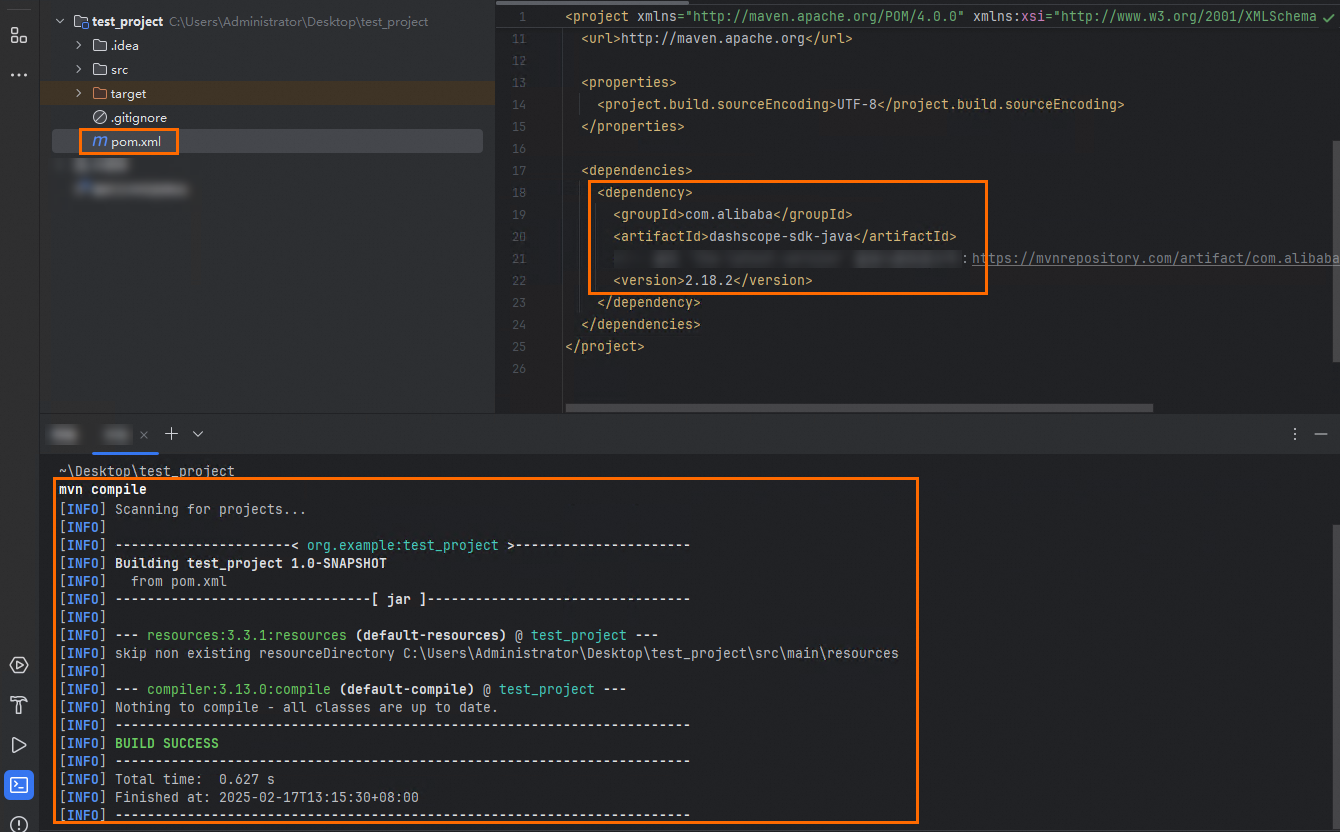
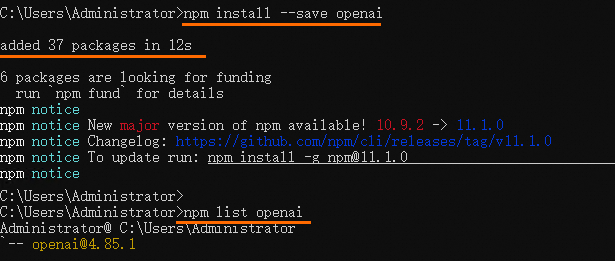
Qwen Cloud provides DashScope SDKs (Python, Java) and supports OpenAI-compatible calls. OpenAI provides SDKs for Python, Node.js, Java, and Go.
Skip this section if you already have Python, Java, Node.js, or Go configured locally.

Run the code examples for the OpenAI SDK or the DashScope SDK.
Prepare the environment
Skip this section if you already have Python, Java, Node.js, or Go configured locally.
- Python
- Java
- Node.js
- Go
Check your Python version
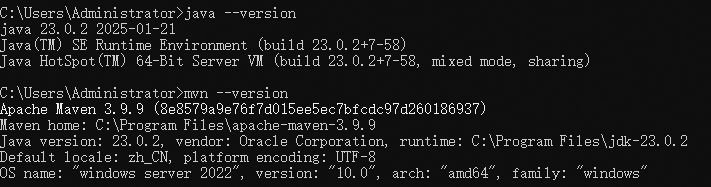
Check if Python and pip are installed:Python 3.8 or higher required. Install from python.org if needed.
python -V or pip --version returns "command not found"?
- Windows
- Linux and macOS
-
Install Python and add it to PATH. See Install Python.
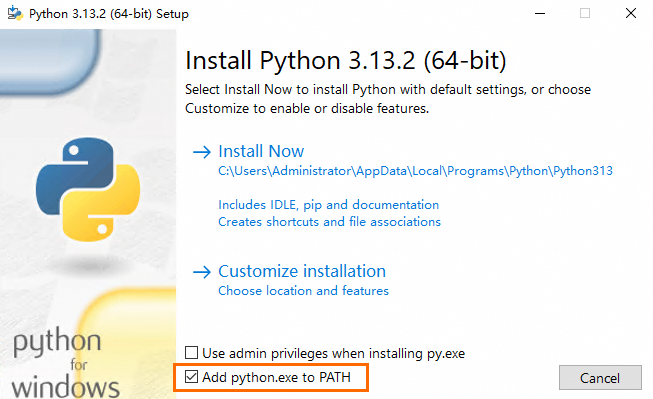
- If the error persists after installing Python and setting PATH, restart your terminal and try again.
Configure a virtual environment (optional)
Create a virtual environment to isolate SDK dependencies (recommended).- Create a virtual environment
- Activate the virtual environment
- Windows:
- macOS/Linux:
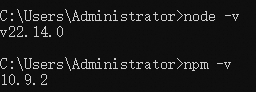


Install the SDK
- Python
- Java
- Node.js
- Go
You can call Qwen Cloud APIs using the OpenAI Python SDK or the DashScope Python SDK.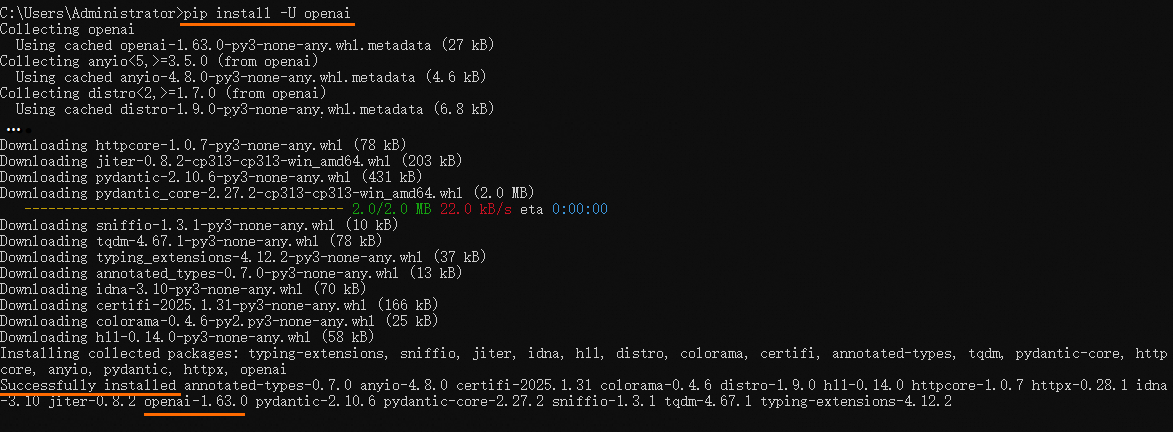 Success message:
 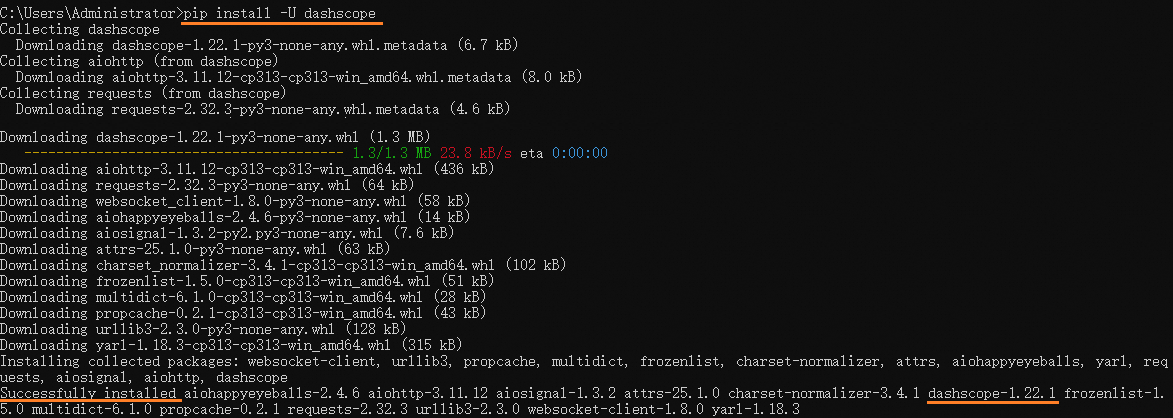 Success message:
Install the OpenAI Python SDK
Install the OpenAI Python SDK:Successfully installed ... openai-x.x.xInstall the DashScope Python SDK
Install the DashScope Python SDK:Successfully installed ... dashscope-x.x.xPip version warnings are safe to ignore.